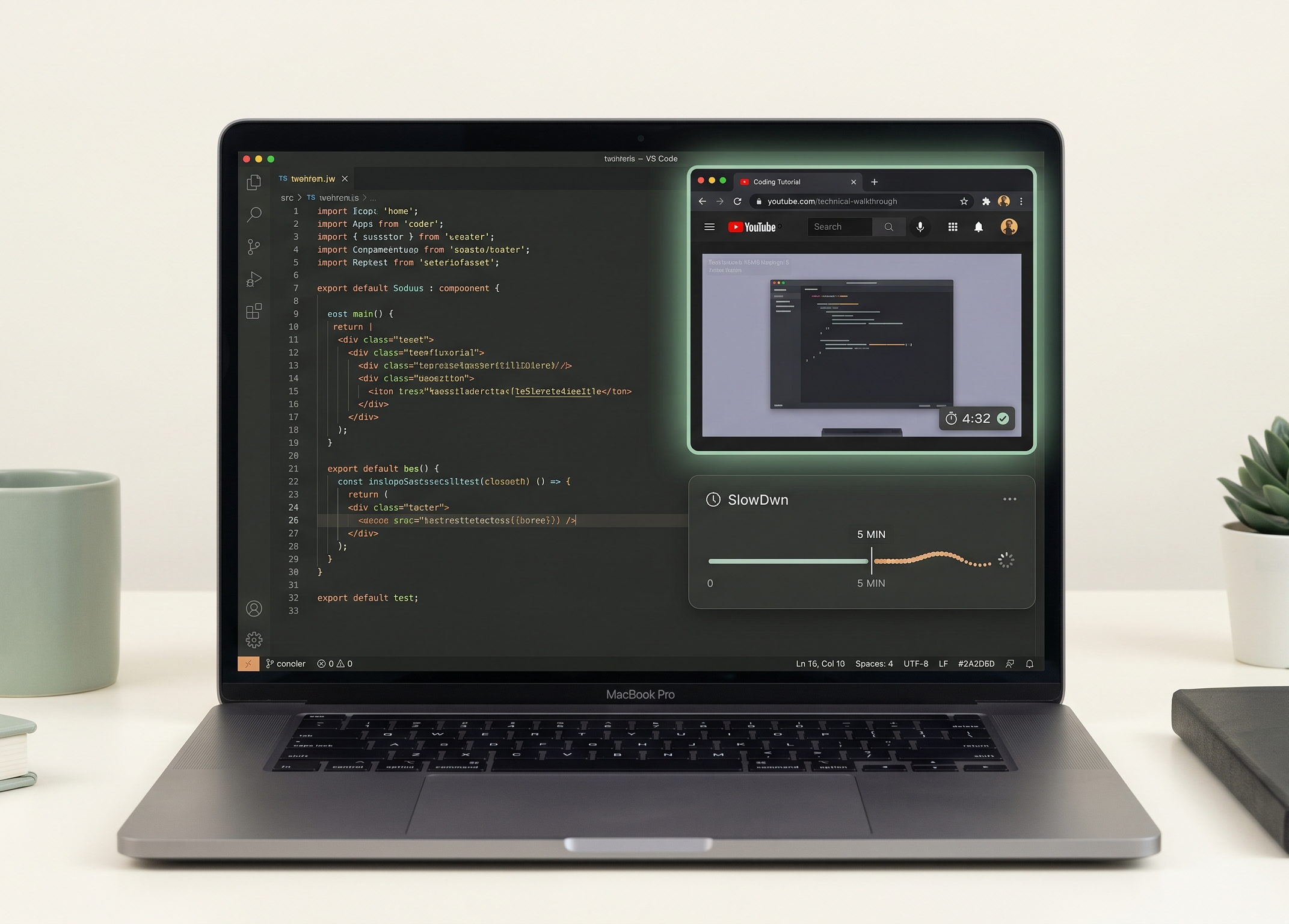
How to Watch a Coding Tutorial on YouTube Without the Rabbit Hole
- digital-wellbeing
- focus
- chrome-extension
Key Takeaways
YouTube Is Non-Negotiable for Devs: Hard-blocking YouTube breaks legitimate workflows—you need access for programming tutorials, library walkthroughs, and documentation clips.
The Real Enemy Is Autopilot: The coding tutorial YouTube distraction rarely starts during the lesson; it starts when the feed and recommendations pull you into passive consumption after the video ends.
Graduated Friction, Not a Jail: SlowDwn uses a golden window of normal use, then a calm pause—so you stay in control after tutorials without rage-uninstalling a hard blocker.
If you're a developer, designer, or knowledge worker, you can't banish YouTube from your professional life. It is the world's largest library of crowd-sourced technical knowledge. You need it to see how that open-source library handles state management, or to watch a quick walkthrough of a new UI tool.
The problem isn't how to watch YouTube tutorials without distraction during the lesson. The problem is what happens after the tutorial ends.
The sidebar populates with hyper-targeted algorithmic recommendations, and your brain subtly shifts from active learning to passive consumption. Before you know it, you're 45 minutes into a YouTube Shorts rabbit hole that has nothing to do with your sprint.
If you've searched for a YouTube distraction blocker only to disable it the moment you need a critical AWS walkthrough, you're not failing at discipline—you're hitting a design flaw in how most tools treat professional YouTube use.
Why You Can't Just Block YouTube
The standard fix for stop wasting time on YouTube is a hard block: zero seconds, admin password, digital gate shut.
For knowledge workers, that approach collapses quickly:
- Legitimate access: Tutorials, conference talks, and API demos are work infrastructure—not entertainment.
- Psychological reactance: A total lockout turns YouTube into forbidden fruit; "just this once" bypasses become routine.
- The wrong target: You don't need to outlaw the platform—you need to watch programming tutorials without getting distracted once you've already solved the problem you opened the tab for.
Traditional digital wellbeing tools treat YouTube as binary: entirely good or entirely bad. SlowDwn treats attention like a dimmer switch—so YouTube for work stays reachable, and mindless continuation costs a little more after a stretch of normal use.
Graduated Friction: Golden Window, Then Calm Pause
Hard blockers punish YouTube entirely. When you need a tutorial mid-sprint, the wall feels like sabotage—and uninstall becomes the rational move.
SlowDwn is built as a dimmer, not a jail:
- Golden window — normal use while you watch the lesson or dig into the docs clip
- Calm pause — a breathing overlay (browser) or soft shield (phone) so autopilot scroll has to clear a speed bump
- Miss a day — the program holds; no streaks, no reset shame
- Friction, not lockout — you can always continue; the cost is awareness, not denial
This is a smarter YouTube distraction blocker alternative than a wall: you still reach the content you opened the tab for, but the infinite-scroll environment stops feeling frictionless once the golden window ends.
| Phase of the session | What you experience | What your brain does |
|---|---|---|
| During the tutorial | Normal playback in the golden window | Stays in focused, task-driven learning mode |
| After the lesson / feed loop | Calm pause when the window ends | Loses the instant-gratification cue that fuels "one more" |
By removing the seamless, high-dopamine experience the YouTube algorithm relies on for recommendations and Shorts-style loops, the mindless urge to keep scrolling naturally decays. You get your answers, you close the tab, and you return to deep work—without fighting a blocker you installed yesterday.
Friction also evolves across SlowDwn's four unlearning phases (Awareness → Plateau → Automaticity → Extinction)—not as a timer you have to manage yourself, but as a gradual program that starts with a speed bump and fades as habits stick.
Autonomy-Supportive Design: No Pop-Ups, No Lockouts
Notice what doesn't happen: a jarring pop-up doesn't block your screen, and you aren't locked out of your browser.
Your autonomy is preserved. If you absolutely must keep watching for work, you can—you'll hit a calm pause after your golden window. That small cost is enough to avoid YouTube algorithm recommendations pulling you into autopilot, without triggering the backfire effect of a hard block.
Intentional friction productivity works because it interrupts System 1 scrolling (fast, automatic, cue-driven) and gives System 2 a moment to ask: Do I still need this tab open?
For developers who depend on YouTube for real technical answers, the goal isn't abstinence. It's graduated friction: stay in control after the tutorial without rage-uninstalling the tool that was supposed to help.
Don't try to outlaw the world's largest tutorial library. Add a dimmer—then let the calm pause do the rest.
Frequently Asked Questions
How do I watch YouTube tutorials without getting distracted?
Use a golden window for the lesson, then a calm pause when autopilot kicks in. SlowDwn adds graduated friction so recommendations feel less automatic after you're done learning—without hard-blocking the whole platform.
Why does the YouTube Shorts rabbit hole happen after tutorials?
The distraction usually starts when the video ends and the algorithm fills the sidebar with hyper-targeted recommendations. Your brain shifts from active learning to passive consumption—not during the tutorial itself.
Should I hard-block YouTube?
For most knowledge workers, no—not as a permanent hard block. Developers and designers need tutorials, conference talks, and API demos. Hard lockouts trigger reactance and bypass hunting. A dimmer-switch approach—golden window, then calm pause, no streaks—fits professional YouTube use better than a hard website blocker configured as a digital jail.